HDC Discover offers a wide range of measures spanning health conditions, medications, and more, to help users comprehensively review their practice. With so many available, it can be time-consuming to locate key measures every time you log in. That’s where the ‘My Favourites’ feature comes in.
This feature allows you to pin the measures that matter most, so they are immediately accessible each time you visit the app.
Let’s walk through how to favourite a measure using an example:
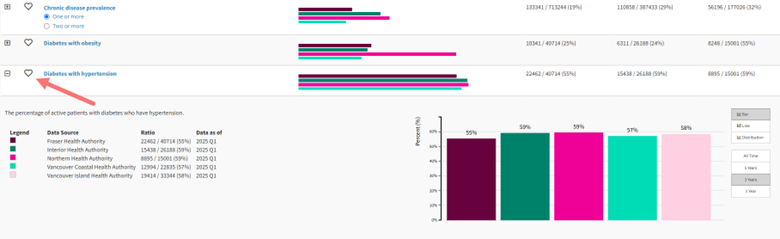
Suppose you’re looking for the Diabetes with Hypertension measure, which you would like to quickly access again:
- Navigate to the Disease Prevalence Domain: Under the QI Panel, go to the Disease Prevalence domain and click on the Comorbidities sub-domain.

- Find the Measure: Scroll down to locate the “Diabetes with Hypertension” measure. You will see a heart icon on the left side of the measure name.
- Favourite the Measure: Click on the heart icon to add the measure to your ‘My Favourites’ domain.
- Access Your Favourites: Each time you log in, you will be presented with the QI Panel’s ‘My Favourites’ domain, where you can easily find the measures you have selected as a favourite.
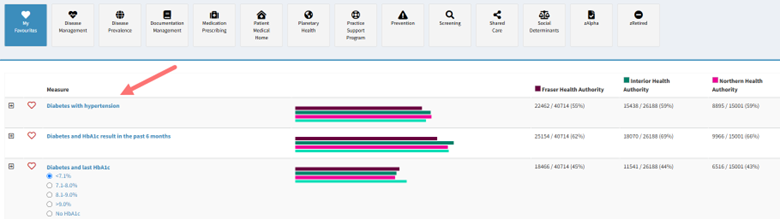
- Remove a Favourite: To remove a measure from the ‘My Favourites’ domain, click the heart icon again. It acts as a toggle switch: one click to add, one click to remove.
As you browse the QI Panel, a red heart icon indicates that the measure is already in your favourites, a helpful visual cue.
With so many measures available in HDC Discover, using the Favourites function allows you to find the measures you review regularly. The ‘My Favourites’ feature lets you save key measures for quick, direct access each time you log in, helping you stay focused on what matters most to your practice.